Install NetMirror APK on Firestick — Complete 2026 Guide
Step-by-step instructions to sideload NetMirror on any Amazon Fire TV Stick. Works on Lite, 4K, 4K Max, and Fire TV Cube. No jailbreak required.
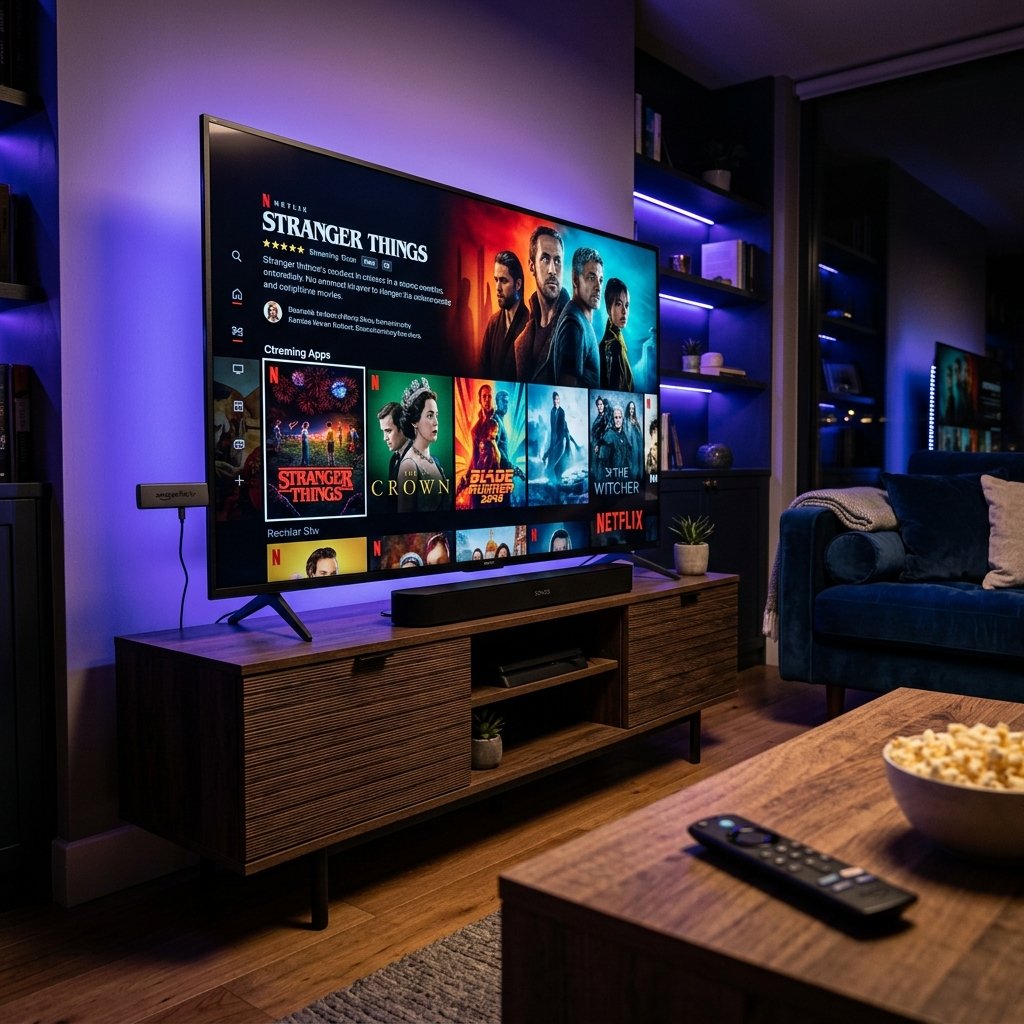
Supported Firestick Models
Fire TV Stick Lite
HD streaming. Budget-friendly. Supports up to 1080p with NetMirror.
✓ SupportedFire TV Stick 4K / 4K Max
4K Ultra HD streaming. Best performance with NetMirror. Dolby Vision support.
✓ RecommendedFire TV Cube
Hands-free with Alexa. Fastest processor. Best for large screen 4K setups.
✓ SupportedMethod 1: Using the Downloader App (Recommended)
The easiest and most reliable way to install NetMirror on Firestick.
Enable Developer Options
From your Firestick home screen: Settings → My Fire TV → Developer Options. Turn on "Apps from Unknown Sources". A warning will appear — tap "Turn On".
💡 If you don't see Developer Options: Go to Settings → My Fire TV → About → Click your device name 7 times rapidly. Developer Options will now appear.
Install the Downloader App
Go to the Amazon Appstore (the magnifying glass icon on your home screen). Search for "Downloader" by AFTVnews. It is the orange icon. Install it — it is completely free and is the most trusted sideloading tool for Firestick.
Download NetMirror APK
Open the Downloader app. In the URL field, type: netmirrorapk.com and press Go. The website will load — navigate to the download section and click the download button. The APK (49MB) will begin downloading.
Install the APK
Once the download finishes, Downloader will automatically prompt you to install. Tap "Install" in the bottom-right corner. Installation takes about 20 seconds. After installation, tap "Done" (not "Open") to return to Downloader.
💡 Downloader will ask to delete the APK file after installation to save space. Tap "Delete" — you can always re-download it later.
Launch NetMirror
From your Firestick home screen, go to Your Apps & Channels (long-press the Home button → Apps). Find NetMirror and open it. You can also hold the NetMirror icon and select "Move to Front" to pin it to your home screen for quick access.
Method 2: Send to TV from Android Phone
If you already have NetMirror on your phone, you can transfer it to your Firestick.
Install Send Files to TV on Both Devices
Download "Send Files to TV" from the Amazon Appstore on your Firestick and from the Google Play Store on your Android phone. Make sure both devices are on the same WiFi network.
Send the APK from Phone
Open Send Files to TV on your phone → Tap Send → Browse to your Downloads folder → Select the NetMirror APK file. On your Firestick, open Send Files to TV and tap Receive. The file will transfer wirelessly.
Install on Firestick
Once received, navigate to the file on your Firestick using a file manager and tap to install. If you don't have a file manager, download ES File Explorer from the Amazon Appstore.
Optimize NetMirror on Firestick
🔌 Use Ethernet for 4K
For the best 4K streaming experience, connect your Firestick using an Amazon Ethernet Adapter. WiFi is fine for HD, but wired connections eliminate buffering for Ultra HD content.
🧹 Clear Cache Regularly
Firestick has limited storage. Go to Settings → Applications → Manage Installed Applications → NetMirror → Clear Cache periodically to free up space and improve performance.
🔐 Use a VPN
Install a VPN on your Firestick for enhanced privacy. ExpressVPN and NordVPN both have native Firestick apps in the Amazon Appstore.
🔄 Keep Updated
Firestick won't auto-update sideloaded apps. Periodically re-download and install the latest version using the same Downloader method to get new features and fixes.
Firestick Installation FAQs
Explore More Guides
📺 NetMirror on Android TV
Install on Google TV, Sony Bravia, Mi Box, and NVIDIA Shield. Three easy methods including USB and Send Files to TV.
Read Android TV Guide →🛡️ Is NetMirror APK Safe?
View the full VirusTotal scan results (0/68 detections), permission analysis, and SHA-256 checksum verification.
Read Safety Report →⚔️ Best Streaming APK Compared
Side-by-side comparison of NetMirror vs Pikashow vs TeaTV. Features, safety, and video quality compared.
Read Comparison →Need the Android phone guide? See our step-by-step APK installation tutorial. Check all NetMirror versions for the latest update.
Get NetMirror on Your Firestick
Stream movies and TV shows on the big screen. Free, ad-free, and Firestick-optimized.
Download NetMirror APK Free